Posts

Input and Output Devices
Image
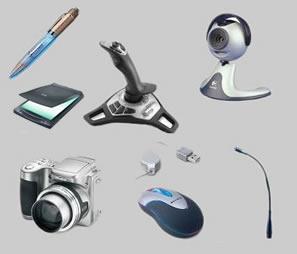
Input devices are computer equipment that we use to sends data into the computer. Without input devices, we cannot communicate with the computer. Some examples of input devices are: Input Devices Keyboard Mouse Tracker ball Joystick Light pen Digital Camera Microphone Touch screen Video Digitizer Graphics tablet Scanner   Output Devices Output devices are computer equipment that enables us to see the information processed by the computer. Output devices enable us to know what the computer is doing or has already done. Monitors or Visual Display Units (VDU's) Printers Plotters Other devices Speakers LCD projectors

Computers and Data

Image
Computers and Data In order to understand data we need to process it. In other words, data must be taken through a number of processing stages in order to generate Information. Any technique in which data is retrieved, stored, classified, manipulated, transmitted and/or reported in such a way as to generate information; especially such processing using computers is called Data Processing . Computers can perform all kinds of processing. From simple and complex calculations, classifications, arranging jumbled text alphabetically and vise versa as well as analyzing pictures and sounds. Stages in Information Processing Information is processed in three major stages . This is called the Information processing cycle . In stage 1 , data is collected from various sources. In stage 2 , the data is processed by various computer techniques in order for it to make sense to us. The final output in stage 3 is what we call Information. Lastly, the computer stores the information in i...

Common Keyboard Symbols

Image
The Keyboard A keyboard is a rectangular computer equipment with buttons otherwise known as "keys". Each key represents the letter, symbol or number printed on it. It is an input device used for sending data to the computer. Punctuation Marks A simple paragraph may contain several punctuation marks. Punctuation marks are symbols used to clarify the content of a written material, i.e. separating words into sentences, clauses and phrases. Punctuation keys can be found on a keyboard. If you look closely at your keyboard you will realize that there are two punctuation marks on a punctuation key. Typing punctuation keys that do not involve the  SHIFT key To type the punctuation mark at the bottom of the key, simply press the key. However, the Shift key is used when you want to type the punctuation mark located at the top of a punctuation key. In this lesson, you will learn how to type punctuation marks that do not involve the Shift key. Examples of these punctuation keys are the c...

Learning with ICT Tools

UNIT 7 Learning with ICT Tools How computers are used to support learning. Information and Communication Tools are equipments that are used to process data into information. They are also used for sending and receiving information. Some ICT tools are Computers, Mobile Phones, Radio and Television etc. In recent years, ICT has turned from being a technology of communication and information to a tool for curriculum creation that supports teaching and learning. Computers can be used in the classroom. They can help teachers to keep records of lessons and grades of all students in their class. Students can also use computers to study and do research through educational software or the World Wide Web. Accessing Information When students want to look for information they can use the Internet. The Internet is the largest network of computers and has a large amount of educational Information. By using search engines like Google, students can easily find articles and publications that are relate...

Introduction to Manipulative Keys

Image
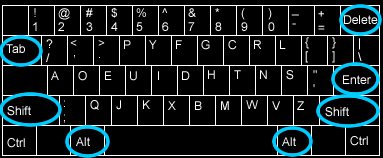
UNIT 6 Introduction to Manipulative keys Keys with multiple functions On a Standard and Enhanced keyboard, there are keys that have more than one function. There are other keys that have been assigned to perform special functions. Such keys are known as manipulative keys . For example, the delete key is used to erase errors made when typing a text or clear unwanted files from the computers memory. It is also used in combination with the Alt key and the Ctrl key when you want to restart the computer. Let's take a look at some manipulative keys. Shift Key. The Shift key is a modifier key on a keyboard; it is used to type capital letters and other alternate "upper" characters. There are two shift keys on the keyboard. One on the left (below the caps Lock key) and right sides (below the enter key). Tab Key. The Tab key on a keyboard is used to move the cursor to the next "tab stop". Tab is the abbreviation for Tabulator. To tabulate, (tabulating) means to put someth...

Health and Safety Using ICT Tools

Image
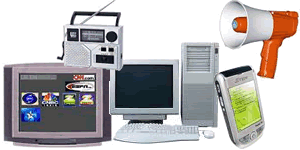
UNIT 5 Health and Safety using ICT Tools. Uses of ICT Tools Information and Communicating Technology (ICT) tools are computer-based equipment used for processing data and communication. Some ICT tools are Television Public Address System Radio Mobile Phone Computer ICT tools are very useful in many other ways. We watch television programs for entertainment, education and information. The Public Address System is used for making community announcements by amplifying the voice of the user. The radio presents programs, music and discussions that keep us informed and entertained. The Mobile phone helps us to stay in touch with our friends, family and colleagues and finally the computer enables us to surf the Internet and communicate with other people online, it is also a form of entertainment because we can use it to watch movies and listen to music as well. Computers can also be used in businesses for communicating, desktop publication, sound editing. Although it is unlikely that using IC...

Opening Applications

Image
Opening Applications Application software is made to perform a specific task for the user. In this lesson you will learn how to open such applications on the Computer.   To open an application, 1. Click on the Start Menu 2. From the Start menu select All Programs . 3. Click on the Application you want to open and wait for it to load on the screen. 1. Click on the Start Menu 2. Select All Programs 3. Select the Application you wish to launch