Keyboarding and Mouse Skills
UNIT 3
Keyboard and Mouse Skills
Keyboard and Mouse Skills
A keyboard is used to type and send commands to the computer. It is set up in the same format as a typewriter. There are two main types of keyboards. They are the Standard and Enhanced Keyboard.
Standard Keyboard
 The standard keyboard is made up of three groups of keys. These are ten function keys, the alphanumeric keys and the numeric keypad.
Enhanced keyboard
 The enhanced keyboard has five groups of keys. Apart from the three groups of keys, there are two more groups. These are the separate cursor control keys and the screen editing keys.
Keys and their functions
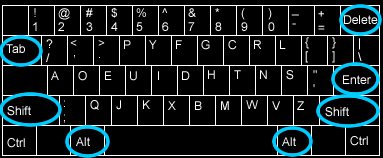
Every key on the keyboard has its function. A function is represented by a symbol and or a letter. If a key has two symbols on it, it can be used in two ways. The bottom symbol is the default symbol. To type the bottom symbol simply press the key. To type the symbol located at the top of the key, hold down the Shift key before you press the key.
Keys with special functions
Shift - To capitalize a letter hold the SHIFT key down whilst typing the letter.
Page Up - Use the Page Up key to move back to the previous page.
Page Down - Use the Page Down key to move ahead to the next page.
End - Use the End key to move to the end of a sentence or line.
Scroll Lock - Change how the text moves up and down
Caps Lock - Press the caps lock key if you want to type a sentence in capital letters.
Ctrl - Do Special Activities.
Alt - Do Special Activities.
Space bar- The space key is for creating spaces between characters or letters.
Tab - Hop to the next field or the far right.
Num Lock - On the Keyboards right side you will see a group of numbered keys. It is called the numerical keypad. Click on Num Lock to turn the numerical pad ON or OFF.
Prints Screen - Capture and print whatever is on your screen.
Esc - Escape from a mistake.
Insert - Insert a new character in the middle of the text.
Enter - Click on Enter to finish a command or instruction.
Home - Move to the beginning.
Left - Press the left arrow to move to the left.
Right - Press the right arrow to move to the right.
Up - Press the top arrow to move up.
Bottom - Press the bottom key to move down.
Backspace - Press backspace to delete a previous character.
Apart from the special keys, there are also keys that have alphabets written on them. These keys are used to type letters, words, phrases or sentences.
 Mouse Skills
The Mouse is computer equipment that is used for pointing, selecting or manipulating items on the screen. By dragging your mouse across the desk you move an arrow on the screen. This arrow is called the mouse pointer. To select an item on the screen, move the mouse pointer over the item and press the left button.
Holding the Mouse
Hold the mouse firmly between your thumb and your tiny finger. Use your thumb to hold the left side of the mouse very firmly and your tiny finger to hold the right side. Place your middle finger over the right mouse button and your index finger over the left mouse button. If the mouse has a scroll wheel, place your middle finger over it.
Single Click and Double Click
Single Click

When you click once on the left button of the mouse it is called a single click, based on the settings on the computer, a single click may simply highlight an Icon.
Double Click
A double click is when you click the mouse button twice and very fast. A double click will highlight the icon and open the program or file. Practice the double click by clicking on the black spot when it flashes.
Clicking on the right button of the mouse will open a shortcut menu from which you can choose several items.
1. Type 30 - 35 words per minute.
2. Use mouse skills in document creation.
A keyboard looks like a typewriter's keyboard. It is used to type and send commands to the computer.
Every key on the keyboard has its function. A function is represented by a symbol and or a letter. If a key has two symbols on it, it can be used in two ways. The bottom symbol is the default symbol. To type the bottom symbol press the key. To type the top symbol, (hold down the SHIFT key) before you press the key.
Shift - To capitalize a letter hold the SHIFT key down whilst typing the letter.
Page Up - Use the Page Up key to move back to the previous page .
Page Down - Use Page Down key to move ahead to the next page.
End - Use the End key to move to the end of a sentence or line .
Scroll Lock - Change how the text moves up and down
Caps Lock- Press the caps lock key if you want to type a whole sentence in capital letters.
Ctrl - Do Special Activities.
Alt - Do Special Activities.
The Space Key- The space key is for creating spaces between characters or letters.
Tab - Hop to the next field or the far right.
Num Lock - On the Keyboards right side you will see a group of numbered keys. It is called the numerical keypad. Click on Num Lock to turn the numbers on or off.
Print Screen - Capture and print whatever is on your screen.
Esc - Escape from a mistake.
Insert - Insert a new character in the middle of the text.
Enter - Click on Enter to finish a command or instruction
Home - Move back to the beginning.
Left - Press left to move to the left.
Right - Press right to move to the right.
Up- Press Up to move up.
Down - Press down to move down.
Backspace - Press backspace to delete a previous character

Comments
Post a Comment